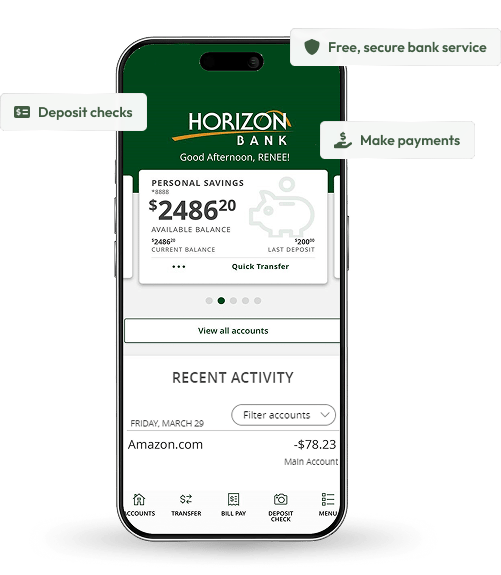
Everything You Need for Digital Banking
Manage your money with confidence using Horizon Bank's digital banking tools. Learn how to use mobile banking, digital wallets, mobile check deposit, account alerts, direct deposit, and other convenient services—all in one place.
Choose the Digital Banking Tool You Need
Wherever Your Life Takes You, Horizon Goes Too.
Bank securely anytime with Horizon's online and mobile banking tools, giving you convenient access to your accounts wherever life takes you.
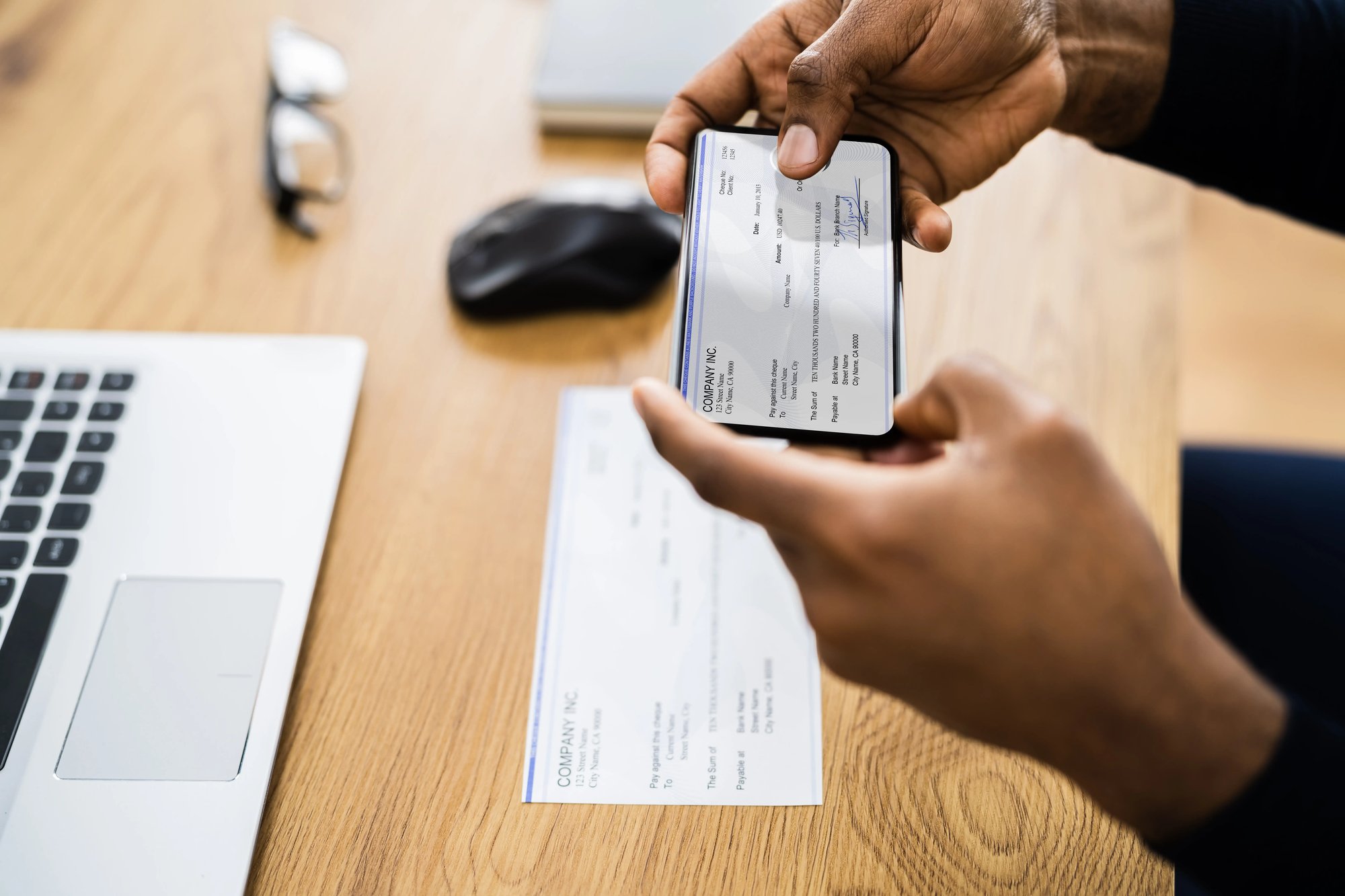
- Deposit checks from your mobile device
- Send money with Zelle®
- Pay bills securely
- Transfer money between accounts
- View balances and transactions
- Find nearby Horizon location and MoneyPass ATMs

Pay Securely
A digital wallet replaces your actual card number with a unique digital number, so merchants never see or store your full card details.
Access your Card Easily
Confirm your identity with a PIN, fingerprint, or face/iris scan, then tap to pay at participating businesses.
Use it Almost Anywhere
Pay with your digital wallet at millions of businesses worldwide—in stores, online, or in apps.
Maintain Control
Whether you pay with a physical card or a digital wallet, the choice is yours—and Horizon Bank is pleased to offer convenient, secure digital-wallet options.
digital payments
Pay with Your Digital Wallet
A digital wallet lets you carry your debit and credit-card details securely on a phone, watch, or tablet. Skip the plastic and pay almost anywhere—in-store, online, or in-app—with a single tap.
Benefits of a Digital Wallet:
-
Pay Securely - Replaces your actual card number with a unique digital number.
-
Access Your Card Easily - Confirm your identity with a PIN, fingerprint, or face scan.
-
Use it Almost Anywhere - Pay in stores, online, or in apps.
-
Maintain Control - Secure wallet options.

Deposit your Paycheck Faster with Direct Deposit.
Deposit your paycheck directly into your account. It’s safer and faster than paper deposits, and you can access your money the same day it’s deposited.
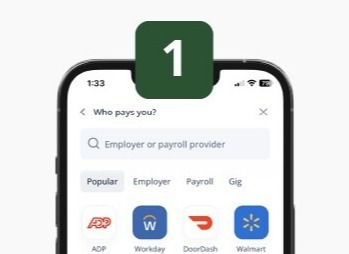
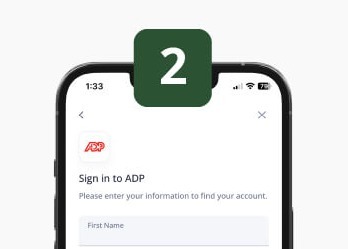
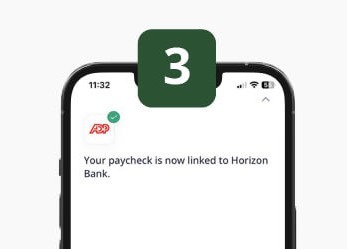
With our automated setup, enrolling in direct deposit is as easy as 1-2-3. Skip the need for payroll forms and set up direct deposit yourself. All you need is your payroll or employee login. Your direct deposit update is seamless, secure, and verified in real time.
Search for your employer or payroll provider
Log in with your existing account
Once account is linked, set up is complete.
How to Submit Forms for Unlisted Employers.
If your employer is not listed, please download the form and submit it to your Human Resources department.
Direct Deposit FAQs
-
How long will it take for my direct deposit setup to take effect?
It can take 1 to 2 pay periods for the change to take effect. However, this can vary by employer or payroll provider.
-
What if I don't see my employer?
There are over 40,000 employers supporting 75% of the U.S. workforce. If you can’t find your employer or payroll provider, Horizon Bank provides a prefilled PDF with the information you'll need to set up direct deposit with your employer or payroll provider.
-
What if I don't remember my employer or payroll login?
Most employers or payroll providers allow you to recover your login credentials as you are setting up your direct deposit through Horizon Bank. However, depending on your employer, you may be required to complete the recovery process outside of the DIY direct deposit setup.
-
How will I know if my direct deposit switch was made?
You will get a confirmation from Horizon Bank if the direct deposit setup was successful. You can also log in directly to your employer or payroll provider and verify the update.
-
How can I edit my preferences once I have setup my direct deposit?
To make any changes and edits you will need to go through your employer or payroll provider. You will not be able to edit or change your preferences through Horizon Bank’s DIY direct deposit feature.
-
How will Horizon Bank protect my personal information?
At Horizon Bank, we protect your information with the highest levels of security, encryption and firewalls.
Digital Wallet FAQs
-
Is it free to use a digital wallet?
Yes. Be aware that message and data rates may apply, depending on your device's data plan.
-
How secure is it to use?
The safety and security of your account is a top priority. When you pay with a digital wallet and your Horizon Bank debit or credit card, your actual card number is replaced with a unique digital card number, which means businesses do not see or store your full card number. Plus, every transaction makes you verify your identity through your device, either by passcode, fingerprint, or face/retinal scan.
-
How do I use ApplePay?
To add your Horizon Bank card to Apple Pay, open the Wallet app on your compatible Apple device and tap the Add Card (+) button. Follow the instructions on your screen to add and verify your card.
Once your card is added, you can use Apple Pay wherever contactless payments are accepted. To pay in a store, double-click the side button on your iPhone, authenticate with Face ID, Touch ID or your passcode, then hold the top of your iPhone near the contactless payment reader until your payment is confirmed. You can select a different card in your Apple Wallet before completing your purchase. -
How do I setup Samsung Pay?
To setup Samsung Pay follow these instructions:
-
Choose the Samsung Pay icon
-
Log in using your Samsung account information. If you do not already have a Samsung account, you can create one.
-
Once logged in click ADD CARD in Samsung Pay app
-
Center the card in the on-screen window and Samsung Pay will read the card number. Or you can enter the card number manually.
-
Verify or enter the additional information such as Cardholder Name, Expiration Date and Security Code (CVV).
-
Accept the Terms and Conditions by clicking AGREE TO ALL.
-
You may be prompted to select a delivery method for receiving a One Time Passcode, such as SMS, EMAIL or CALL IN. The One Time Passcode will be delivered to the destination selected.
-
Enter the code received and touch SUBMIT.
-
Once complete, your card is ready for use in Samsung Pay.
-
-
How do I setup Google Wallet?
To set up Google Wallet you can use the following instructions
- Download and install the Google Wallet app from the Google Play Store.
- Open the Google Wallet app, and Sign In (if prompted).
- Tap the View Wallet button.
- Next, tap on the Add to Wallet button.
- Tap Payment Card, and then New credit or debit card.
- Next you will need to hold your card in the camera window that pops up. After the camera captures your card's information, verify your card's expiration date and CVC number.
- Verify your billing address.
- Tap the Save and continue button at the bottom of the screen.
- Read the Terms of Service, and tap the Accept button at the bottom of the screen.
- Choose to verify your card information with your bank via text or email, and hit continue.
- Next, you'll find yourself on the Verify Your Card screen. Choose where you want to receive the verification number.
- Tap the Continue button.
- When you receive the number, type it into the field on the Verification Number screen and tap the Submit button.
App Store is a service mark of Apple Inc. Apple and the Apple logo are trademarks of Apple Inc., registered in the U.S. and other countries. Android, Google Play, and the Google Play logo are trademarks of Google Inc. Data charges may apply. Check your mobile phone carrier for details.
Zelle and Zelle-related marks are widely owned by Early Warning Services, LLC and are used herein under license.